
Editing your score
A transcription gets you most of the way — but you know your music best. The Score Editor lets you tidy and reshape a score right in the browser, with playback and an on-screen keyboard to guide you. Use Save to keep your changes; a local recovery draft protects unsaved work.
Opening the editor
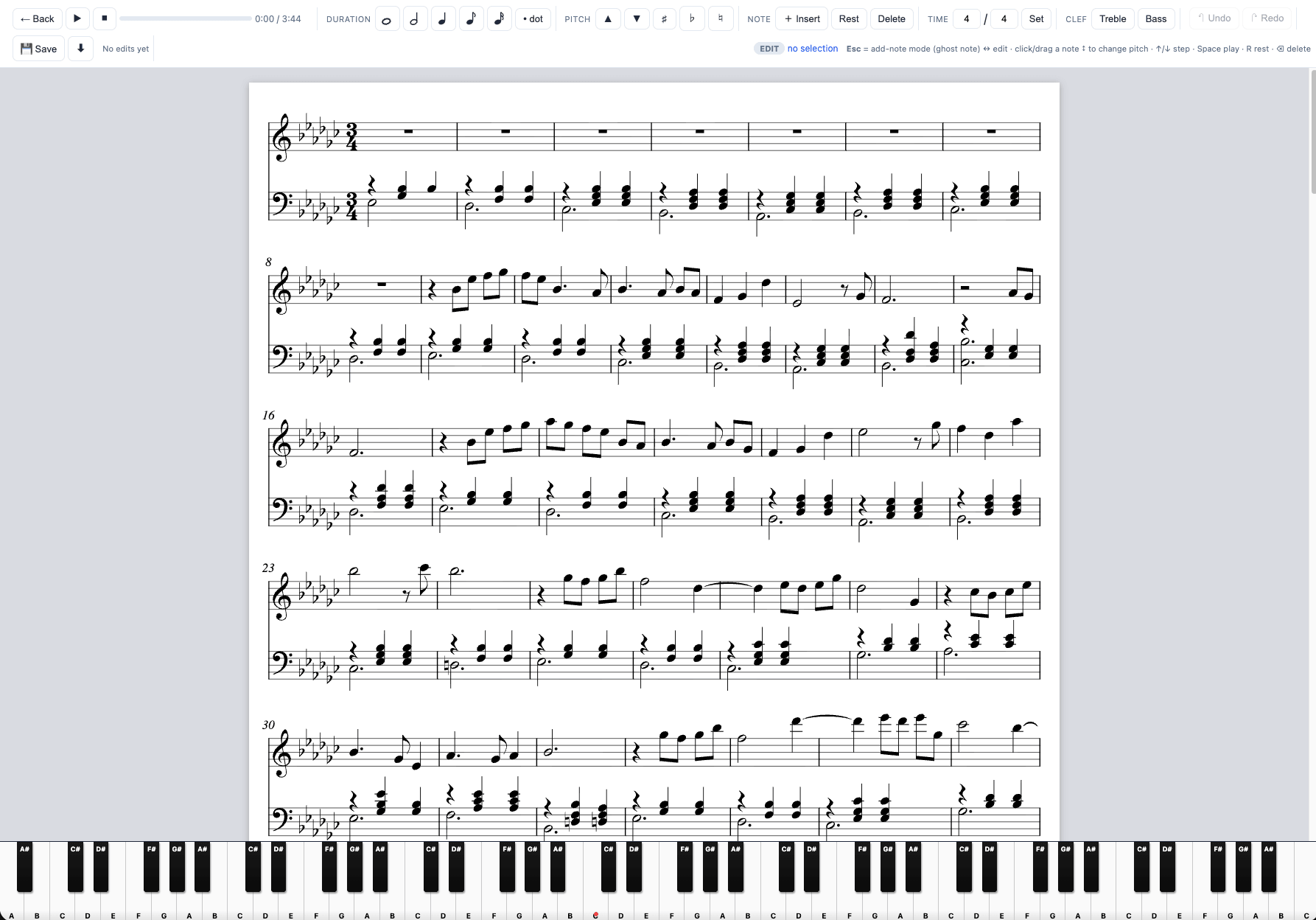
Open a transcription and choose Edit score, or click the Edit button in the score viewer. You’ll land in the editor with three parts: the toolbar across the top, the score in the middle, and a piano keyboard along the bottom.
The interface
- Toolbar — note values (whole, half, quarter, eighth, 16th) and dots, accidentals (♯ / ♭ / ♮), add & delete, clef and time-signature changes, undo/redo, and play.
- Score — click a note to select it; the note highlights and the keyboard lights its pitch.
- Keyboard — shows you the exact pitch of the selected note in sky-blue, and flashes orange during playback.
Selecting and changing notes
- Click a note to select it.
- Drag a note up or down to change its pitch, or use the ↑ / ↓ arrow keys to nudge it step by step.
- Set its length from the toolbar, add a dot, or toggle it to a rest and back.
- Undo / redo anything — experiment freely.
Adding notes — press Esc
Press Esc to switch into add-mode. A faint “ghost” note now follows your cursor across the staff, showing the pitch you’re about to place — and the keyboard lights that key. Move to the spot and pitch you want, then click to drop the note in. Press Esc again to return to selecting.
It follows the key signature (fortegn)
New notes inherit the score’s key signature automatically. In a sharp or flat key, a note you add lands at the correct sounding pitch — for example, in a six-flat key a B you place is actually a B♭. The staff won’t draw a redundant ♭ glyph (the key signature already implies it), so to confirm the pitch, watch the keyboard: the lit key shows you exactly which note it is. Need a note outside the key? Use the accidental buttons (♯ / ♭ / ♮) to set it explicitly.
Hearing your edits
Press play to hear the score. When aligned performance timing is available, playback follows it; otherwise, it uses exact score timing. Score-note and keyboard highlights stay synchronized. Use Save to keep changes with the score; until then, the browser keeps a local recovery draft.