
Create a Piano Roll Video
Many musicians and composers want to create Synthesia-style piano roll tutorial videos for YouTube. Bots for Music includes a built-in piano roll visualizer that you can screen-record to create your video.
Coming soon: We're working on built-in video export so you won't need to screen record. For now, the methods below work great.
Open your song in My Files
Go to My Files and click the transcription you want to learn.
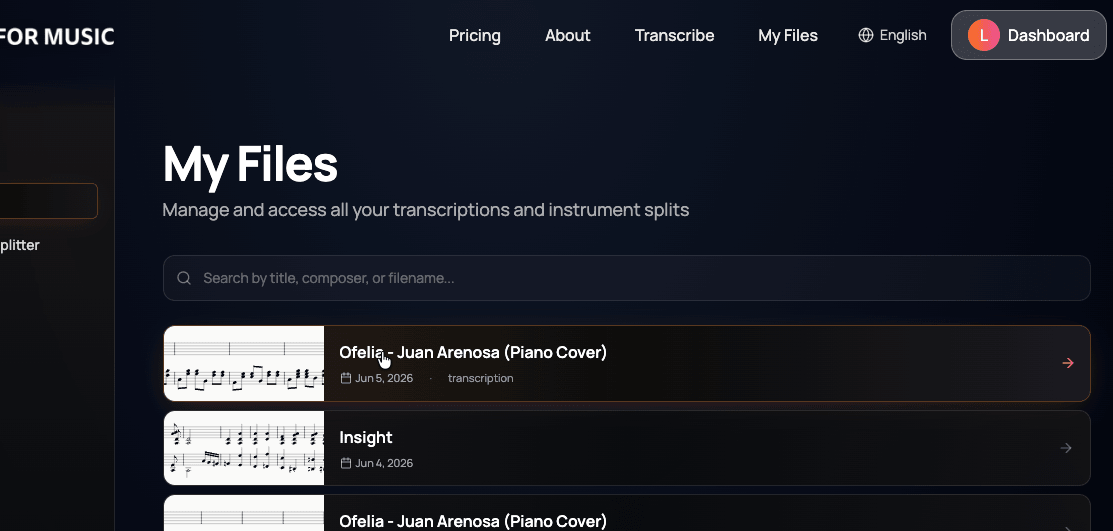
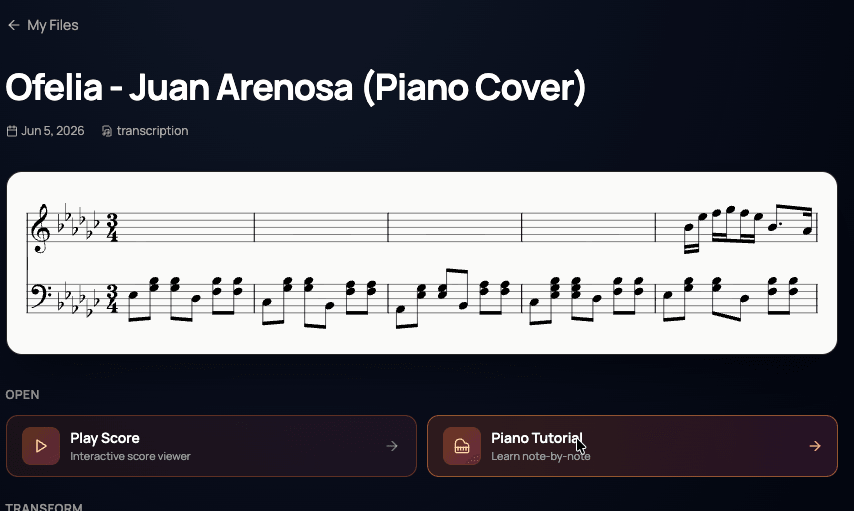
1. Open Your Piano Roll
- Go to My Transcriptions
- Find the transcription you want to make a video of
- Click the Piano Roll button
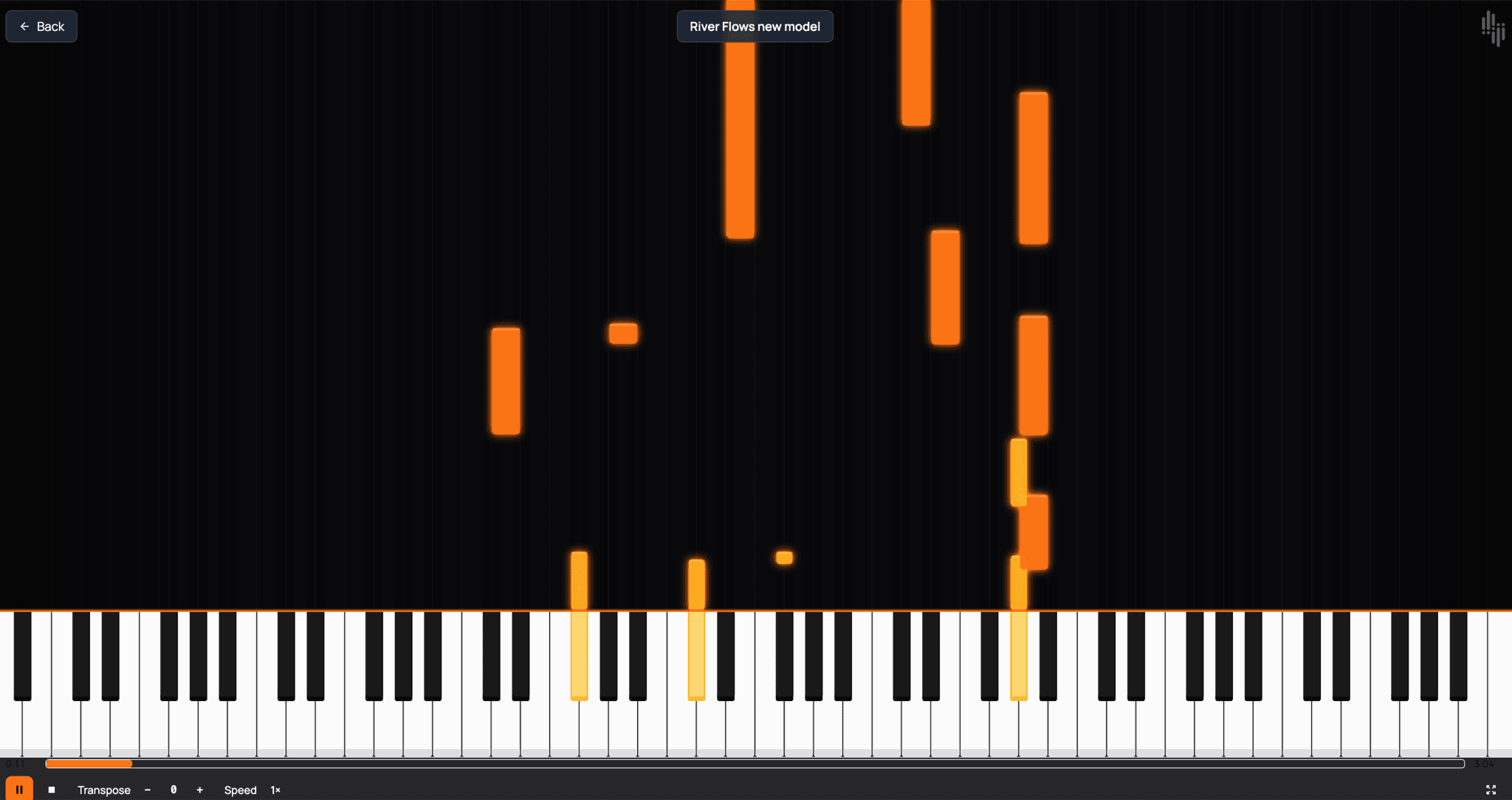
- The piano roll opens fullscreen with falling-note animation and sound
2. Record Your Screen
Choose the instructions for your device below. All platforms have built-in screen recording — no extra software needed.
macOS
- Press Cmd + Shift + 5
- Select "Record Selected Portion" or "Record Entire Screen"
- Click Record, then switch to your piano roll
- When finished, click the Stop button in the menu bar
- The recording saves to your Desktop as a .mov file
Alternative: QuickTime Player → File → New Screen Recording
Windows
- Press Win + G to open Xbox Game Bar
- Click the Record button in the Capture widget (or press Win + Alt + R to start/stop recording)
- Switch to your piano roll and let it play
- Press Win + Alt + R again to stop
- The recording saves to
Videos\Captures
Alternative: OBS Studio (free, more options for advanced users)
iOS (iPhone / iPad)
- Open Control Center (swipe down from top-right corner)
- Tap the Screen Recording button (circle icon)
- A 3-second countdown starts — switch to your piano roll
- To stop, tap the red status bar at the top and confirm
- The recording saves to your Photos app
If the Screen Recording button isn't visible: Settings → Control Center → add Screen Recording
Android
- Swipe down the notification shade twice to see Quick Settings
- Tap Screen Record
- Choose whether to record audio, then tap Start
- Switch to your piano roll and let it play
- Swipe down and tap Stop when finished
- The recording saves to your gallery
Available on most Android 11+ devices. On older devices, you may need a third-party screen recorder app.
Chromebook
- Press Ctrl + Shift + Overview (or search for "Screen Capture")
- Select the Record mode (video icon)
- Choose to record the full screen or a selected area
- Click to start recording, switch to your piano roll
- Click the stop button in the shelf when done
3. Tips for Best Results
- Audio: Use headphones if you don't want microphone audio in your recording. Most screen recorders capture system audio directly.
- Resolution: Record at the highest resolution your device supports. For YouTube, 1080p or higher is recommended.
- Orientation: For YouTube uploads, record in landscape mode (horizontal).
- Trimming: Trim the beginning and end of your recording in a video editor before uploading. Most devices include a basic video trimmer in the Photos/Gallery app.
- Full screen: The piano roll opens in fullscreen mode automatically for the cleanest video output.
4. About the Watermark & Your Rights
The watermark does NOT claim any rights
The piano roll video includes a small Bots for Music watermark. This is purely branding — it does not claim any ownership or rights over your video.
You are free to upload, share, and monetize your piano roll videos however you wish. The same applies to your sheet music and score exports — they are yours.
However, you are responsible for having the rights to the underlying music. If you transcribe a copyrighted song, you may need appropriate permissions from the rights holder to publish it on YouTube or elsewhere. Bots for Music does not grant any music rights.
For full details, see our Terms of Service (Sections 3 and 12).
5. Coming Soon — Direct Video Export
We're building a direct video export feature so you'll be able to download your piano roll video without screen recording. This will produce higher quality output with perfect frame rates.
Stay tuned for updates — we'll announce it on our website when it's ready.