
Edit Your Score in MuseScore
Your transcription outputs a MusicXML file that you can open in notation software to continue editing. Fix notes, add dynamics, adjust the layout, and print professional-looking scores.
Open your song in My Files
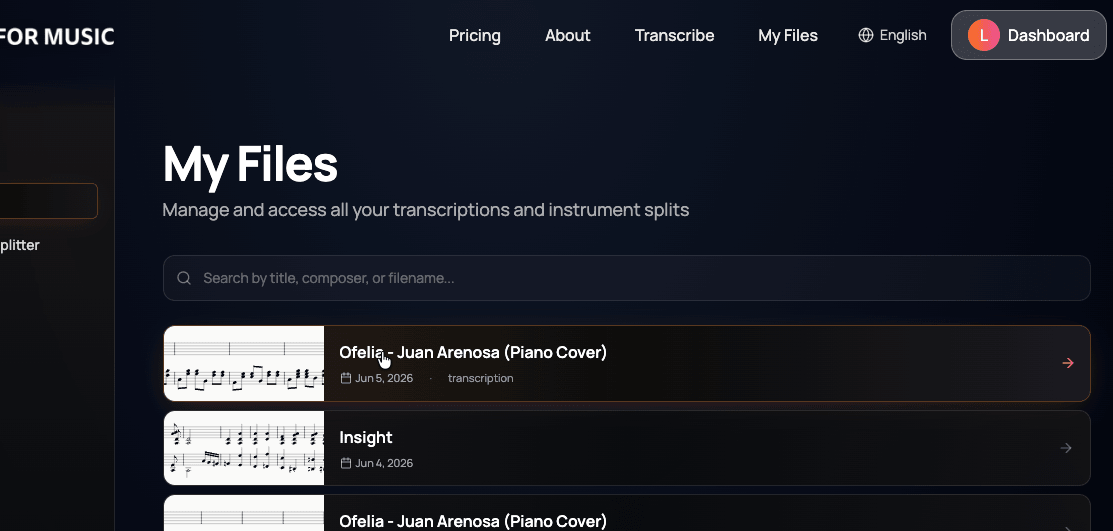
Go to My Files and click the transcription you want to export.
1. Download Your MusicXML File
Go to My Transcriptions and find the transcription you want to edit. Click the XML button to download the MusicXML file to your computer.
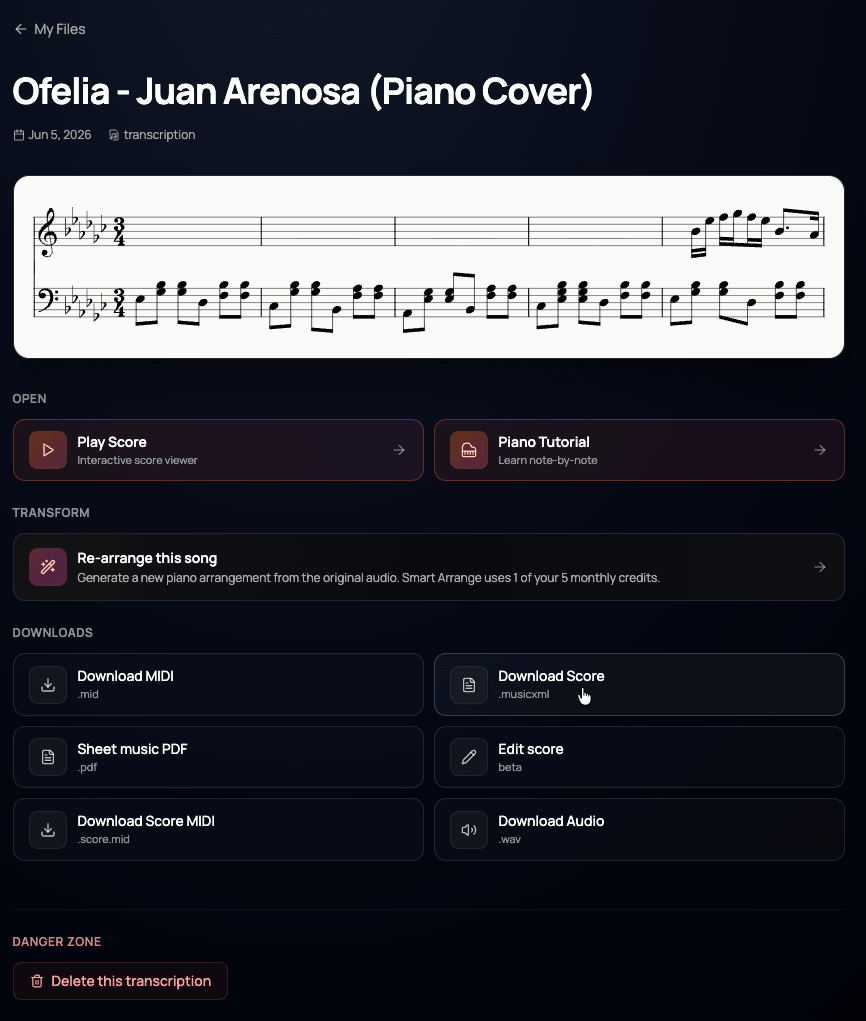
The file will be saved as .musicxml — this is a universal format supported by virtually all notation software.
2. Open in MuseScore (Free & Recommended)
MuseScore 4 is a free, open-source notation editor available for Windows, macOS, and Linux. It's the easiest way to edit your transcription.
- Download and install MuseScore from musescore.org
- Open MuseScore
- Go to File → Open
- Navigate to your downloaded
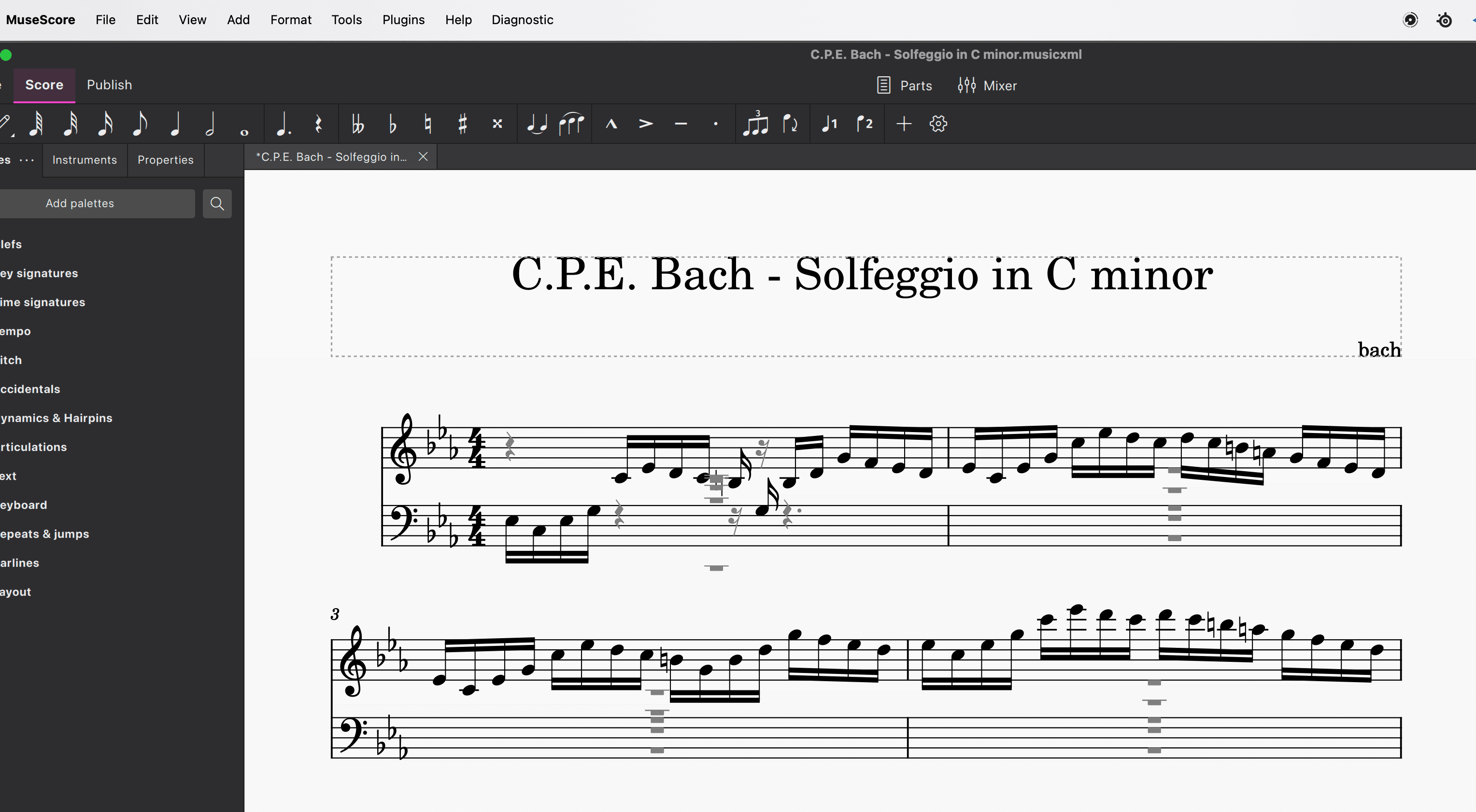
.musicxmlfile and open it - Your score will appear in the MuseScore editor, ready to edit
3. Other Notation Software
MusicXML is a universal standard. Any notation software that supports MusicXML import will work with your transcription files:
Sibelius
by Avid · Commercial
File → Open → select your .musicxml file
Finale
by MakeMusic · Commercial
File → Open → select MusicXML file
Dorico
by Steinberg · Commercial
File → Import → MusicXML
Flat.io
Online · Free tier available
Import MusicXML directly in your browser — no software to install
4. Tips for Editing Your Score
- AI transcription gives you a strong starting point, but you should review the output for accuracy — especially for complex passages
- Check the key signature and time signature — adjust them if the AI picked a different enharmonic spelling or meter
- Add dynamics (pp, mf, ff), pedal markings, and articulations that AI transcription doesn't capture from audio
- Use MuseScore's playback feature to listen through and verify the transcription sounds correct
- Export your finished score as PDF for printing, or as MIDI for use in a DAW
5. Your Rights
Scores you generate with Bots for Music are yours to use as you wish — print them, share them, perform from them, or publish them.
However, you are responsible for having the necessary rights to the underlying source material. If you transcribed a copyrighted recording, you may need permissions to distribute the resulting sheet music.
See our Terms of Service (Section 12) for full details.