
آڈیو ڈیمکسنگ اور انسٹرومنٹ اسپلٹنگ
جانیں کہ کسی بھی ریکارڈنگ سے انفرادی آلات کو کیسے الگ کریں — یہیں ہماری سائٹ پر۔ کوئی ڈاؤن لوڈ نہیں، کوئی بیرونی ٹول نہیں، کوئی تکنیکی مہارت درکار نہیں۔
1. آڈیو ڈیمکسنگ کیا ہے؟
جب آپ کوئی گانا سنتے ہیں تو آپ کو سب کچھ آپس میں ملا ہوا سنائی دیتا ہے — گلوکار، پیانو، ڈرم، بیس، وغیرہ۔ ایسی ریکارڈنگ کو مکس کہا جاتا ہے، کیونکہ تمام آلات ایک ہی آڈیو فائل میں یکجا کر دیے گئے ہوتے ہیں۔
آڈیو ڈیمکسنگ (جسے اسٹیم سیپریشن یا انسٹرومنٹ اسپلٹنگ بھی کہتے ہیں) اُس ملے جلے مکس میں سے انفرادی آلات کو دوبارہ نکالنے کا عمل ہے۔ اسے یوں سمجھیں جیسے کسی اسموتھی کو واپس اس کے اصل اجزاء میں الگ کرنا۔
یہ مصنوعی ذہانت کی بدولت ممکن ہوتا ہے۔ AI ماڈلز کو لاکھوں گانوں پر تربیت دی گئی ہے تاکہ وہ مختلف آلات کی منفرد آوازی خصوصیات کو پہچان سکیں — پیانو کی چمک، کِک ڈرم کی دھمک، انسانی آواز کی ساخت — اور انہیں اُس وقت بھی الگ کر سکتے ہیں جب وہ بیک وقت بج رہے ہوں۔
2. یہ کیوں اہم ہے؟
ہمارا ٹرانسکرائبر آڈیو کو شیٹ میوزک میں بدلتا ہے، مگر یہ بہترین کارکردگی تب دکھاتا ہے جب وہ ایک آلے کو واضح طور پر سن سکے۔ جب کسی ریکارڈنگ میں گائیکی، ڈرم، بیس اور پیانو سب ایک ساتھ بج رہے ہوں، تو ٹرانسکرائبر کو یہ سب چھاننا پڑتا ہے — اور وہ فالتو نوٹس بنا سکتا ہے، دھیمے حصے چھوڑ سکتا ہے، یا ایک آلے کو دوسرے سے گڈمڈ کر سکتا ہے۔
ٹرانسکرائب کرنے سے پہلے صرف پیانو (یا صرف ووکلز) کو الگ کر کے، آپ AI کو کام کے لیے کہیں زیادہ صاف سگنل دیتے ہیں۔ نتیجہ نمایاں طور پر زیادہ درست شیٹ میوزک ہوتا ہے — کم غلط نوٹس، بہتر تال کی شناخت، اور مجموعی طور پر صاف آؤٹ پٹ۔
اگر آپ ٹرانسکرائب نہ بھی کر رہے ہوں، تب بھی ڈیمکسنگ مشق (کسی ٹریک سے پیانو ہٹا کر ساتھ بجانا)، ری مکسنگ (نئے ارینجمنٹ کے لیے ووکل الگ کرنا)، یا محض یہ سننے کے لیے مفید ہے کہ کسی ریکارڈنگ میں کوئی خاص آلہ کیسے بجایا گیا تھا۔
3. ہمارا انسٹرومنٹ اسپلٹر
Bots for Music میں ایک بلٹ ان انسٹرومنٹ اسپلٹر شامل ہے جو تمام Pro سبسکرائبرز کو دستیاب ہے۔ یہ مکمل طور پر ہمارے سرورز پر چلتا ہے — آپ کو کچھ انسٹال کرنے کی ضرورت نہیں، اور یہ ویب براؤزر والے کسی بھی ڈیوائس پر کام کرتا ہے۔
انسٹرومنٹ اسپلٹر کسی بھی ریکارڈنگ سے پیانو، ووکلز، ڈرم، بیس، اکوسٹک گٹار، اور الیکٹرک گٹار نکال سکتا ہے۔ آپ کو دو آؤٹ پٹ فائلیں ملتی ہیں: منتخب کردہ الگ کیا گیا آلہ، اور باقی سب کچھ (بیکنگ ٹریک)۔
پروسیسنگ میں عام طور پر آپ کے آڈیو کی لمبائی کے مطابق 30 سیکنڈ سے 2 منٹ لگتے ہیں۔ مکمل ہونے پر، آپ نتائج کو براہِ راست اپنے براؤزر میں سن سکتے ہیں اور انہیں ڈاؤن لوڈ کر سکتے ہیں۔
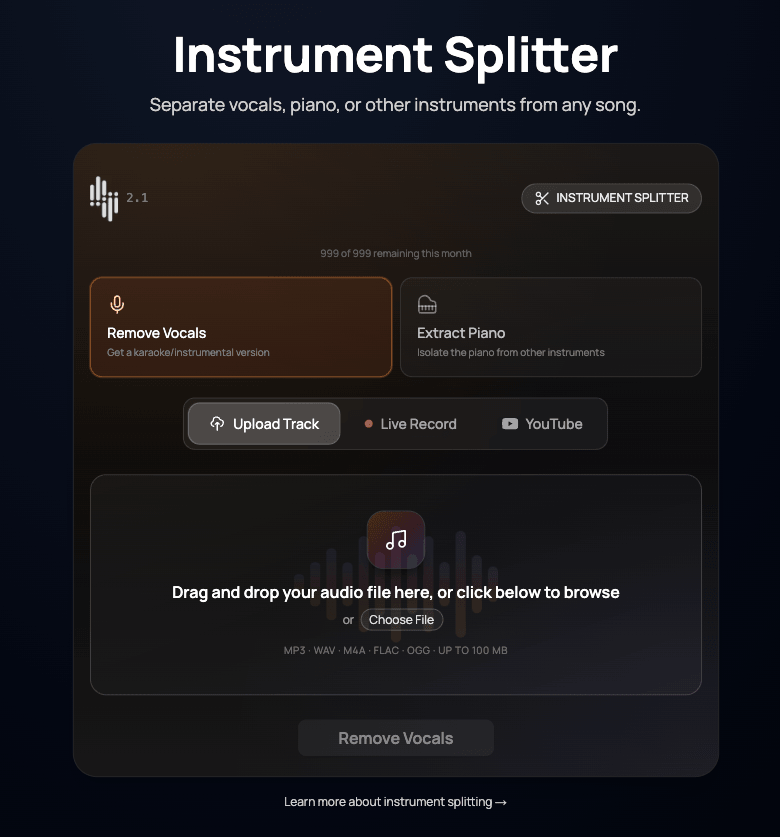
4. انسٹرومنٹ اسپلٹر کیسے استعمال کریں
مرحلہ 1: انسٹرومنٹ اسپلٹر کھولیں
سائڈ بار مینو سے انسٹرومنٹ اسپلٹر صفحے پر جائیں، یا اپنے ڈیش بورڈ سے اس تک پہنچیں۔
مرحلہ 2: منتخب کریں کہ کیا نکالنا ہے
آپ کو دو ایکسٹریکشن موڈ نظر آئیں گے: ووکلز ہٹائیں اور پیانو نکالیں۔ اپنی ضرورت کے مطابق کوئی بھی منتخب کریں۔ "ووکلز ہٹائیں" آپ کو انسٹرومینٹل بیکنگ ٹریک دیتا ہے۔ "پیانو نکالیں" صرف پیانو کا حصہ الگ کرتا ہے۔
مرحلہ 3: اپنا آڈیو اپ لوڈ کریں
آپ تین طریقوں سے آڈیو فراہم کر سکتے ہیں: اپنے ڈیوائس سے فائل اپ لوڈ کریں، براہِ راست اپنے براؤزر میں ریکارڈ کریں، یا YouTube لنک پیسٹ کریں اور ہم آپ کے لیے آڈیو نکال دیں گے۔
مرحلہ 4: پروسیس اور ڈاؤن لوڈ کریں
ایکسٹریکٹ بٹن پر کلک کریں اور پروسیسنگ مکمل ہونے کا انتظار کریں۔ آپ کو ایک پیش رفت اشاریہ نظر آئے گا۔ مکمل ہونے پر، آپ نکالے گئے آلے اور بیکنگ ٹریک دونوں کو چلا کر سن سکتے ہیں، اور ان میں سے کوئی ایک یا دونوں ڈاؤن لوڈ کر سکتے ہیں۔
5. الگ کریں اور ٹرانسکرائب کریں: ایک کلک والا طریقہ
اگر آپ کا مقصد ایسی ریکارڈنگ سے شیٹ میوزک حاصل کرنا ہے جس میں کئی آلات ہوں، تو آپ کو انسٹرومنٹ اسپلٹر الگ سے استعمال کرنے کی ضرورت نہیں۔ ٹرانسکرائب صفحے پر ایک الگ کریں اور ٹرانسکرائب کریں آپشن ہے جو سب کچھ ایک ہی مرحلے میں کر دیتا ہے۔
”الگ کریں اور ٹرانسکرائب کریں“ موڈ خودکار طور پر آپ کی ریکارڈنگ سے پیانو نکالتا ہے اور پھر اسے ٹرانسکرائب کرتا ہے — یہ سب ایک ہی بٹن دبانے سے ہوتا ہے۔ یہ کسی مکمل گانے سے پیانو شیٹ میوزک تک پہنچنے کا تیز ترین طریقہ ہے۔
6. دونوں موڈز کو سمجھنا
ووکلز ہٹائیں
یہ موڈ گائیکی کی آواز کو باقی سب چیزوں سے الگ کرتا ہے۔ آؤٹ پٹ ایک انسٹرومینٹل ٹریک ہوتا ہے — مکمل بیکنگ مگر بغیر گلوکار کے۔ یہ اُس وقت بہترین ہے جب آپ کے پاس پیانو اور ووکلز والا گانا ہو اور آپ پیانو کا حصہ الگ کرنا چاہتے ہوں، یا جب آپ مشق کے لیے کراؤکی طرز کا بیکنگ ٹریک چاہتے ہوں۔
پیانو نکالیں
یہ موڈ ریکارڈنگ سے صرف پیانو الگ کرتا ہے اور باقی تمام آلات اور ووکلز چھوڑ دیتا ہے۔ یہ بہترین آپشن ہے جب کسی گانے میں بہت سے آلات ہوں (ڈرم، بیس، گٹار، پیانو، ووکلز) اور آپ ٹرانسکرپشن یا مشق کے لیے صرف پیانو کا حصہ چاہتے ہوں۔
مجھے کون سا استعمال کرنا چاہیے؟
- صرف پیانو + ووکلز: "ووکلز ہٹائیں" استعمال کریں — انسٹرومینٹل آؤٹ پٹ زیادہ تر پیانو ہوگا۔
- پیانو سمیت مکمل بینڈ: "پیانو نکالیں" استعمال کریں — یہ صرف پیانو نکال لے گا اور ڈرم، بیس، گٹار اور ووکلز پیچھے چھوڑ دے گا۔
- ٹرانسکرائب کرنا چاہتے ہیں: ٹرانسکرائب صفحے پر ”الگ کریں اور ٹرانسکرائب کریں“ موڈ استعمال کریں — یہ سب کچھ خودکار طور پر سنبھال لیتا ہے۔
7. معاون آڈیو فارمیٹس
انسٹرومنٹ اسپلٹر MP3، WAV، M4A، FLAC، OGG اور AAC فائلیں قبول کرتا ہے۔ آؤٹ پٹ فائلیں اعلیٰ معیار کے WAV فارمیٹ میں فراہم کی جاتی ہیں، جو سب سے زیادہ آڈیو تفصیل محفوظ رکھتا ہے۔ آپ YouTube لنکس سے نکالا گیا آڈیو بھی براہِ راست اپ لوڈ کر سکتے ہیں۔
8. بہترین نتائج کے لیے تجاویز
- اعلیٰ معیار کا ان پٹ = بہتر آؤٹ پٹ۔ اگر آپ کے پاس ریکارڈنگ کا اعلیٰ معیار والا ورژن دستیاب ہو (کم بٹ ریٹ والے MP3 کے بجائے WAV یا FLAC)، تو بہترین سیپریشن نتائج کے لیے وہی استعمال کریں۔
- چھوٹی کلپس تیزی سے چلتی ہیں۔ اگر آپ کو گانے کا صرف کوئی خاص حصہ درکار ہے، تو اپ لوڈ سے پہلے آڈیو کو تراش لیں۔ اسپلٹر پوری فائل کو پروسیس کرتا ہے۔
- کچھ گانے دوسروں سے بہتر الگ ہوتے ہیں۔ ایسی ریکارڈنگز جہاں آلات مکس میں واضح طور پر الگ ہوں، بھاری تہہ دار یا مسخ شدہ مکسز کے مقابلے میں صاف تر نتائج دیں گی۔
- دونوں موڈ آزمائیں۔ اگر "پیانو نکالیں" کی آواز کچھ پتلی لگے، تو اس کے بجائے "ووکلز ہٹائیں" آزمائیں — بعض اوقات انسٹرومینٹل ٹریک زیادہ بھرپور، فطری پیانو آواز دیتا ہے۔
- ٹرانسکرائب کرنے سے پہلے سنیں۔ نکالے گئے ٹریک کو چلا کر یقینی بنائیں کہ اس کی آواز صاف ہے۔ اگر اس میں واضح خرابیاں یا غائب نوٹس ہوں، تو ٹرانسکرپشن کا معیار بھی متاثر ہو سکتا ہے۔
9. ڈیمکس کوٹہ
Pro سبسکرائبرز کو ماہانہ 5 انسٹرومنٹ اسپلٹس ملتے ہیں۔ آپ کا باقی کوٹہ انسٹرومنٹ اسپلٹر صفحے پر دکھایا جاتا ہے۔ کوٹہ ہر بلنگ سائیکل کے آغاز پر ری سیٹ ہو جاتا ہے۔
”الگ کریں اور ٹرانسکرائب کریں“ موڈ ٹرانسکرائب کرنے سے پہلے خودکار طور پر پیانو نکالتے وقت آپ کے کوٹے میں سے ایک اسپلٹ بھی استعمال کرتا ہے۔
مزید اسپلٹس درکار ہیں؟ کوٹوں اور اپ گریڈز کی تفصیلات کے لیے ہمارے پلانز دیکھیں۔
10. آپ کے حقوق
Bots for Music کے ساتھ بنائے گئے اسکورز اور MIDI فائلیں آپ کی ہیں اور آپ انہیں جیسے چاہیں استعمال کر سکتے ہیں — انہیں پرنٹ کریں، شیئر کریں، ان سے پرفارم کریں، یا انہیں شائع کریں۔
تاہم، بنیادی ماخذ مواد پر ضروری حقوق رکھنے کے آپ ذمہ دار ہیں۔ ڈیمکسنگ آپ کو کاپی رائٹ شدہ ریکارڈنگز پر کوئی نئے حقوق نہیں دیتی۔
مکمل تفصیلات کے لیے ہماری سروس کی شرائط دیکھیں۔